> ## Documentation Index
> Fetch the complete documentation index at: https://rajanand.org/llms.txt
> Use this file to discover all available pages before exploring further.
# How to execute SQL commands within a batch file?
TL;DR
```
sqlcmd -S localhost -d demo -i list_tables.sql -o query_result.log
```
-S = Server name (e.g., SQLVM\MSSQLSERVER)\
-d = Database name\
-i = Write your SQL script in this file.\
-o = If you want the SQL query output to be stored in a separate file.
***
If you have been working with SQL Server Management Studio, you know that you can execute any sql query by selecting it and then press F5. That's a manual work and you have to execute the query to get the desired output. Let's say that you want to automate these part and the you have a lot of ad-hoc query in a file and that has to be executed. There is a `sqlcmd` utility to execute queries within command prompt. So in this post, we will first see how to connect to the database and execute few queries interactively and execute SQL queries stored in a file.
Okay, let's start.
Open command prompt in windows and then enter `sqlcmd` then press Enter.
Now you will see `1>` and if you press Enter once again the number will increment to `2>`.

If you repeat the same the number will keep on increase and you may wonder how to exit from this. It's simple and to exit from this mode enter `exit()`

Let's try once again.
This time enter the below query. Here an important point to note is the batch separator "GO". The `sqlcmd` utility executes all the sql queries in the batch. The batch is identified based on the batch separator. This is how you can execute the query.
```
sqlcmd
select @@servername
GO
```
If you closely notice the screenshot below, once the query executes again you are back to `1>` and waiting for another query to be entered. This is in interactive mode.

You can execute multiple queries in this fashion.

Now, we don't want to execute in interactive mode and we want just our query to be executed.
Let's execute some simple queries from command prompt.
```
sqlcmd -Q "select getdate()"
sqlcmd -Q "select 1+1 as x"
```
A point to be noted is the arguments that you pass is case sensitive. So pay an extra attention to avoid any unexpected result. If you use lowercase q instead of uppercase Q, once the query execution complete, the command will not exit and it will be in interactive mode.

Now, `sqlcmd` utility has connected to the local sql server instance using trusted connection (i.e., Windows authentication) and returned the result.
If you want to specify the detail explicitly, you can do like below.\
-S (uppercase) - to specify the server name.
I am connecting from a laptop where SQL Server is installed locally. So I have to connect to the `localhost`. You can also use `.` (dot) or `127.0.0.1` IP address to represent the local host server.

If you would like to connect to the server instance using the SQL authentication (with username and password), you can do the same by using the below command-line options.
```
sqlcmd -S localhost –U yourusername –P yourpasswordhere -Q "select getdate()"
```

If you don't specify username and password, by default it takes the trusted connection (Windows authentication). It you would like to mention it explicitly, you can use the command-line option `-E`.

If you would like to connect to a remote SQL server, you have to mention the servername and instance name properly to connect. For example, If your server name is `SQL-VM` and SQL Server instance installed in that server is `SQL2019`, you should use `SQL-VM\SQL2019` instead of `localhost` .

Similary, if you would like to execute a query on a specific database, you can do that by passing the database name as a value to command-line option `-d` (lowercase).
-d - database name
```
sqlcmd -S localhost -d demo -Q "select name as table_name from sys.tables"
```

So far, we have been entering the sql query that needs to be executed in command prompt itself. But we want to some ad-hoc query that we have in a file to be executed. It's better to keep the query in file as it is easy to maintain then entering the query every time in command prompt.
I have moved the query to a separate SQL file called `list_tables.sql` in the same directory `D:\rajanand.org\`
-i - to specify an input file.
```
sqlcmd -S localhost -d demo -i list_tables.sql
```

`sqlcmd` utility takes the SQL file as an input and executes the query but displays the output result in command prompt itself. Similarly how we have changed the input SQL query to a file, we will do the same for output. This way we will have output message stored in the file for future reference.
Let us change that to insert into a separate file.
-o (lowercase o )
```
sqlcmd -S localhost -d demo -i list_tables.sql -o query_result.log
```
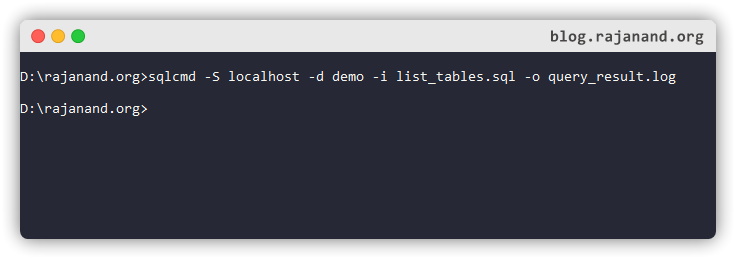


You can keep all the SQL queries in a file and use the previous `sqlcmd` command within a batch file (.bat) and then execute the batch file.

This is how you can execute any SQL query using batch file and automate this batch file execution however you want.
If you would like to see all the command-line options that `sqlcmd` utility accepts, try `sqlcmd -?`

You can also refer these command-line options in Microsoft [documentation](https://docs.microsoft.com/en-us/sql/tools/sqlcmd-utility?view=sql-server-ver15#syntax).
## Summary
You have learned to
1. Execute query within command prompt
2. Execute sql file within command prompt
3. Execute query and save output to a file.
4. Get user input for server and database name and execute the sql file connecting to that database.