> ## Documentation Index
> Fetch the complete documentation index at: https://rajanand.org/llms.txt
> Use this file to discover all available pages before exploring further.
# How to enable dark mode in SSMS in 2025?
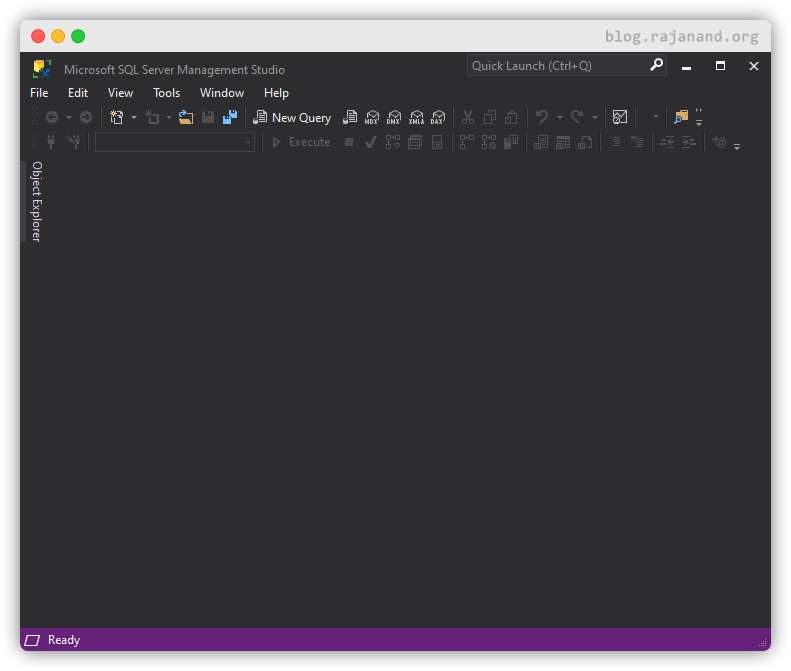
🚨 Update: [SSMS v21](https://learn.microsoft.com/en-us/sql/ssms/install/install?view=sql-server-ver16#step-2---determine-which-version-of-sql-server-management-studio-21-to-install) preview now supports the dark mode natively. Although the dark mode is not implemented fully, this is the start of the implementation and it will take several release for the complete implementation. Go ahead and install SSMS v21 and check [dark mode](https://learn.microsoft.com/en-us/sql/ssms/ssms-21/roadmap?view=sql-server-ver16#modernization).
SQL Server management studio (version prior to 21) does not have the dark theme by default. You can make the below change to enable the dark theme option.
1. Go to the below path\
`C:\Program Files (x86)\Microsoft SQL Server Management Studio 18\Common7\IDE\`
2. Modify the below file in Administrator mode. If you are using notepad++, you can launch it in admin mode.\
File name: `ssms.pkgundef`

3. Search for `Dark` and add // in front of the below line to comment and save the file.\
\[$RootKey$\Themes\{1ded0138-47ce-435e-84ef-9ec1f439b749}]

4. Open SSMS => Tools => Options => Environment => General => Color theme and choose dark theme.

5. Restart the SSMS.
If you like this tips, you can sign up for my [newsletter](https://rajanand.substack.com) to receive these tips directly in your inbox.